Creating Insight Trackers
Learn how to create Insight Trackers in Journium. You can use a UI based wizard, or create them manually using the tracker specification YAML.
Trackers can be created in three ways. The NL Builder lets you describe what you want to track in plain English and generates a fully-configured tracker for you. The YAML Editor gives you direct control over the tracker specification. Git Repository sync lets you version control your tracker files and deploy them automatically on push.
Irrespective of the method you use, the result is always a YAML tracker specification file that you can inspect and edit at any time.
Trackers are specific to an application instance. Trackers configured for one application instance are not shared with other instances.
Describe in English (NL Builder)
The NL Builder is the fastest way to create a new tracker. Describe what you want to measure in plain English — Journium's AI assistant will choose the right analysis type, configure the fields, and generate a complete tracker spec for you.
You can access the NL Builder from Developers | Insight Trackers | Create New by selecting the Describe in English option.
The NL Builder walks you through four steps:
1. Describe Your Goal
Type a natural-language description of the insight you want. Be as specific as you like — include event names, time windows, and any segmentation properties you care about. Examples:
- "Track how many users drop off during checkout — from cart viewed through order completed, broken down by plan."
- "Show me 30-day retention after signup, with weekly cohort groups."
- "Alert me when error event rates spike more than 2 standard deviations above the 14-day rolling average."
2. Clarify (if needed)
If your description is ambiguous, Journium may ask a small number of clarifying questions (e.g. which events to treat as the start and end of an activation window). Answer them in the same text field — the builder will update its draft accordingly.
3. Review the Draft
Once the pipeline completes, you'll see a full YAML tracker spec in the editor along with instrumentation notes — a checklist of any new events or properties your tracker requires that haven't been seen in your app yet.
Review the spec, make any manual adjustments in the YAML editor, and decide on a status:
- Save as Draft — saves the tracker in draft status (no scheduled runs)
- Save & Activate — saves and activates the tracker immediately
4. Instrument Your Events (if required)
If the instrumentation notes list events or properties your app doesn't currently send, follow the instrumentation guide for your SDK to start capturing them before activating the tracker.
Test Data: The NL Builder also generates a sample test-events file (downloadable from the tracker detail page) so you can verify the tracker's analysis logic before real events arrive.
Using YAML Editor
You can create a new tracker manually using the tracker specification YAML. This gives you full control over every configuration field.
Go to Developers | Insight Trackers | Create New and choose the Use YAML Editor option.

The editor is pre-filled with a sample tracker specification. Edit the YAML to match your requirements.
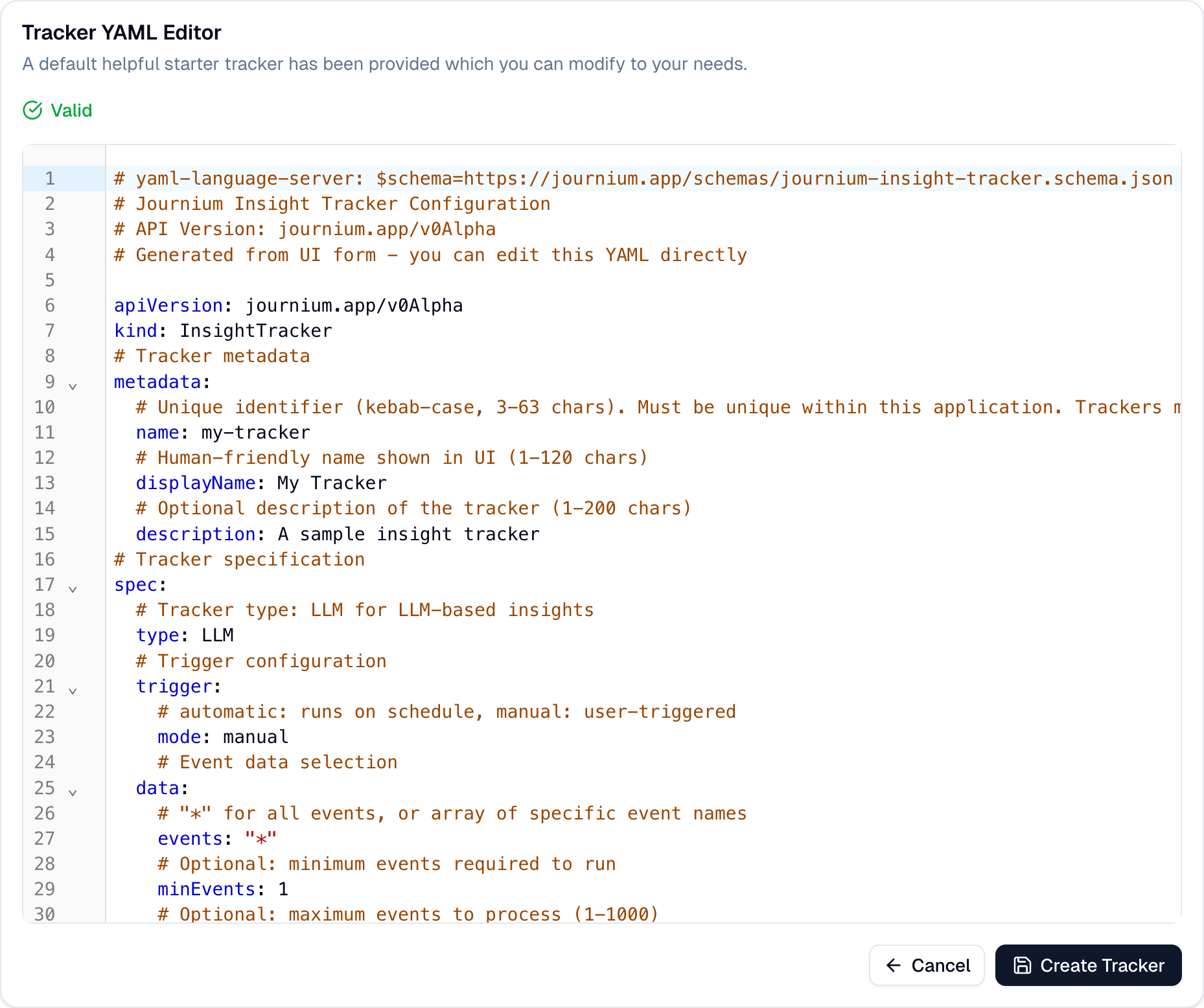
The editor provides a validation status badge to indicate the validity of the YAML. If errors exist, they are shown in the gutter. Hover over the error to see the message. You can save only when the YAML is valid.
Example YAML
apiVersion: journium.app/v0Beta
kind: InsightTracker
metadata:
  name: checkout-funnel
  displayName: Checkout Funnel Analysis
  description: Track drop-off across the 4-step checkout flow
spec:
  type: LLM
  trigger:
    mode: automatic
    schedule: daily
  window:
    period: last_7d
    granularity: day
  analysis:
    type: funnel
    entity: person_id
    steps:
      - event: cart_viewed
        label: Viewed Cart
      - event: checkout_started
        label: Started Checkout
      - event: payment_entered
        label: Entered Payment
      - event: order_completed
        label: Completed Order
    conversionWindow: 2h
  llm:
    promptTemplate: |
      Analyze this checkout funnel for {{windowPeriod}}.
      {{totalEntrants}} users entered. Overall conversion: {{overallConversionPct}}%.
      Step breakdown: {{stepsSummary}}
      Worst step: {{worstStep}} ({{worstStepCvr}}% CVR, {{worstStepLoss}} users lost).
      Data: {{dataAsJson}}
      Give 2-3 concrete optimization recommendations.
    maxOutputTokens: 500
See the Tracker Specification reference for the complete list of fields.
Best Practices
When authoring tracker YAML directly:
- Choose the right analysis type: Match the
analysis.typeto the question you're asking — see Analysis Types for guidance - Use only valid template variables: Each analysis type exposes a specific set of
{{variables}}— using an unsupported variable will be rejected at save time - Set appropriate schedules: Use
automaticwith aschedulefor continuous monitoring; usemanualfor exploratory or ad-hoc analysis - Keep prompts focused: One clear question per tracker produces better insights than an open-ended catch-all prompt
- Use
privacyto protect PII: List any user-identifying properties inexcludePropertiesorhashProperties
Default Tracker: When you create an app in Journium, a default "User Engagement" tracker is automatically created. This tracker helps you test data ingestion and insight generation with your initial events.
From Git Repository
You can connect a repository to your application instance at Developers | Insight Trackers | Link Git Repository. Tracker files from your git repository will be synced to your application instance.

When you push your changes to the deployment branch, the trackers will be synced to your application instance. You can select any branch as the deployment branch. By default, the deployment branch is the default branch of the repository.
Note: Your tracker YAML files should be in the .journium/trackers directory in your repository.
For example, if your repository is https://github.com/my-org/my-repo, your tracker YAML files should be at https://github.com/my-org/my-repo/tree/main/.journium/trackers.
How is this guide?
Last updated on
Insight Trackers
Insight Trackers use AI-driven analytics to automatically transform raw event data into actionable insights. Configure trackers in the dashboard to continuously monitor your application and surface meaningful patterns.
Tracker Specification
Learn about the Journium Insight Tracker specification. Irrespective of how a tracker is created or maintained, it is always stored as a YAML file.